Embed Knowly in Microsoft Teams
1. Create a Team in Microsoft Teams
- Open the Microsoft Teams app.
- Create a new team and channel, give it a suitable name.
2. Open SharePoint from Teams
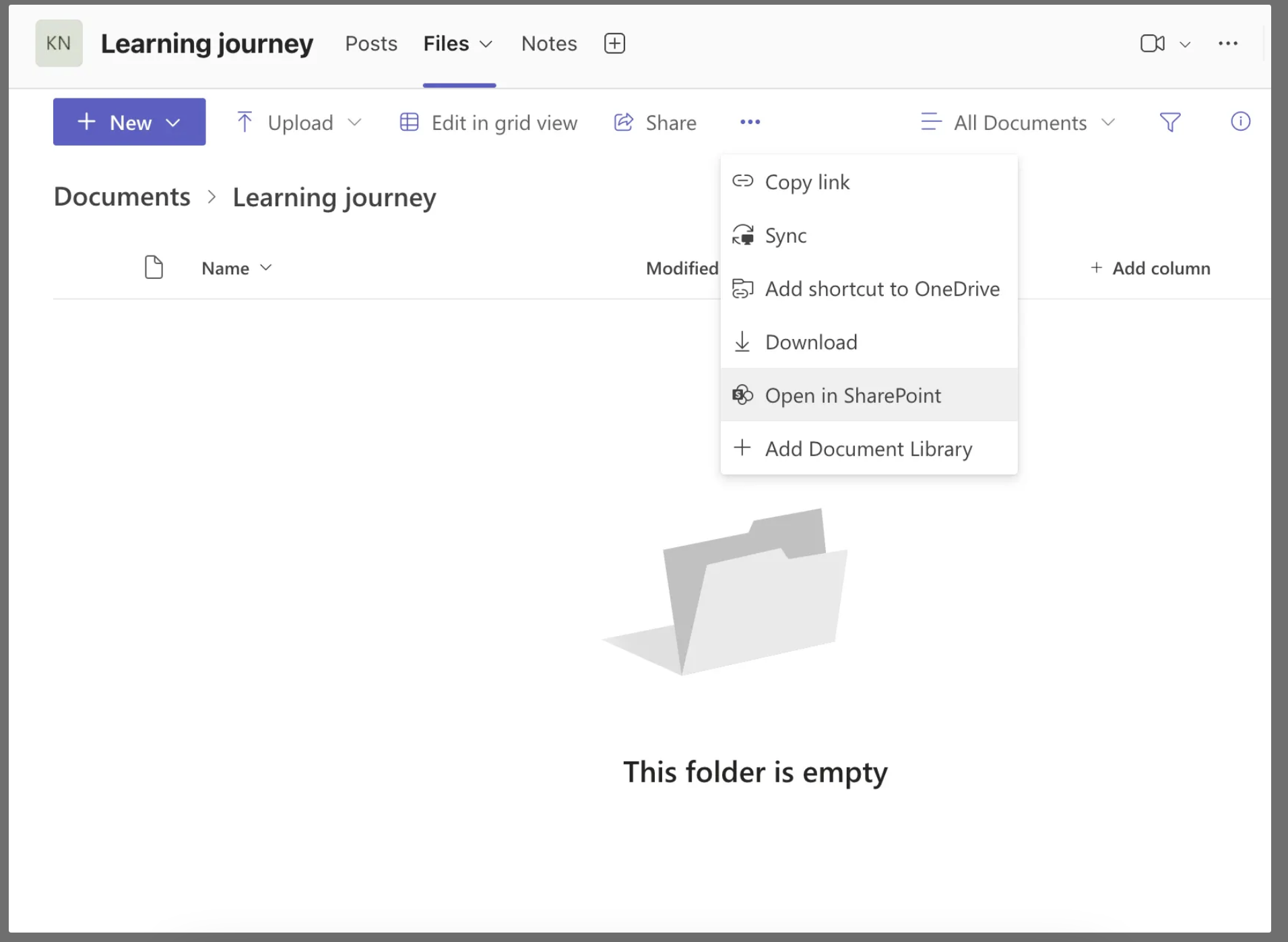
- Navigate to the Files tab in your new team.
- Click the three dots (⋯) and select Open in SharePoint.
3. Prepare Your SharePoint Page
- Go to the SharePoint Home page.
- Click Edit and remove all default web parts.
- Set the section layout to one column.
4. Add an Embed Element
- Open the toolbox and insert an Embed element.
5. Get the iframe Code
- Copy and paste the following iframe code into the embed element:
<iframe width="200" height="120" src="INSERT KNOWLY LINK" frameborder="0" allowfullscreen="" title="Knowly"></iframe>
6. Retrieve the Knowly Link
- Go to the learning journey in Knowly you want to embed.
- Click Settings → Enable embedding in Microsoft Teams.
- Copy the generated link.
7. Insert the Knowly Link into the iframe Code
- Replace
"INSERT KNOWLY LINK" in the iframe code with the copied Knowly link.
8. Embed the iframe Code in SharePoint
- Paste the customized iframe code into the Embed element on your SharePoint page.
9. Adjust Embedding Settings (If Needed)
10. Verify the Embedding
- Once Knowly appears on your SharePoint page, the embedding is complete.
Common Mistakes to Avoid:
- The SharePoint page should have only one column. If there are multiple columns, remove the extras.
- Not all elements need to be deleted—only the embed element should remain.

